
Anyone who has generated more than one AI image of the same product knows the problem. The first image looks perfect. The second one changes the bottle shape. The third one quietly rewrites your logo. For a one-off fun picture that does not matter — but if you sell a product, run a page, or build a small brand, an image tool that forgets what your product looks like is nearly useless.
ChatGPT Images 2.6, released on 4 November 2026, tackles exactly that. The update generates images about 50% faster, holds the details of people, products and brands consistent across repeated edits, adds GIF creation, and — the feature this guide is about — lets you save a reference image once and recall it in any later prompt with an @name. It is available on all plans, including free. Save your product photo as a named reference, and every new image starts from the real thing instead of from a fresh guess.
What You Need Before You Start
Very little. You need one good photo of the product or person you want to keep consistent, and a ChatGPT account. The photo matters more than anything else in this guide: the saved reference can only preserve what it can see. Use a clear, well-lit photo, taken straight-on, with the product large in the frame and nothing important cropped out. If the label is blurry in your photo, it will be blurry — or invented — in every image that follows.
Step 1: Upload Your Photo
Open a new chat in ChatGPT and attach your photo using the + button, exactly as you would attach any file. Before you ask for any image, tell it what the photo is and that consistency matters. A simple opening message is enough:
This is my product — a blue glass perfume bottle with a gold cap and a white label. I will ask you for several images of it. The bottle’s shape, colour, cap and label must stay identical in every image.
This first message sets the ground rules for the whole conversation. Images 2.6 is built to hold details across repeated edits, and stating plainly which details are fixed gives it a clear target.
Step 2: Save It as a Named Reference
Now ask ChatGPT to save the photo as a reference you can recall by name. Pick a short name with no spaces — something you will remember next week, like the product itself:
Save this photo as a reference image named @bluebottle. Whenever I use @bluebottle in a prompt, use this exact product.
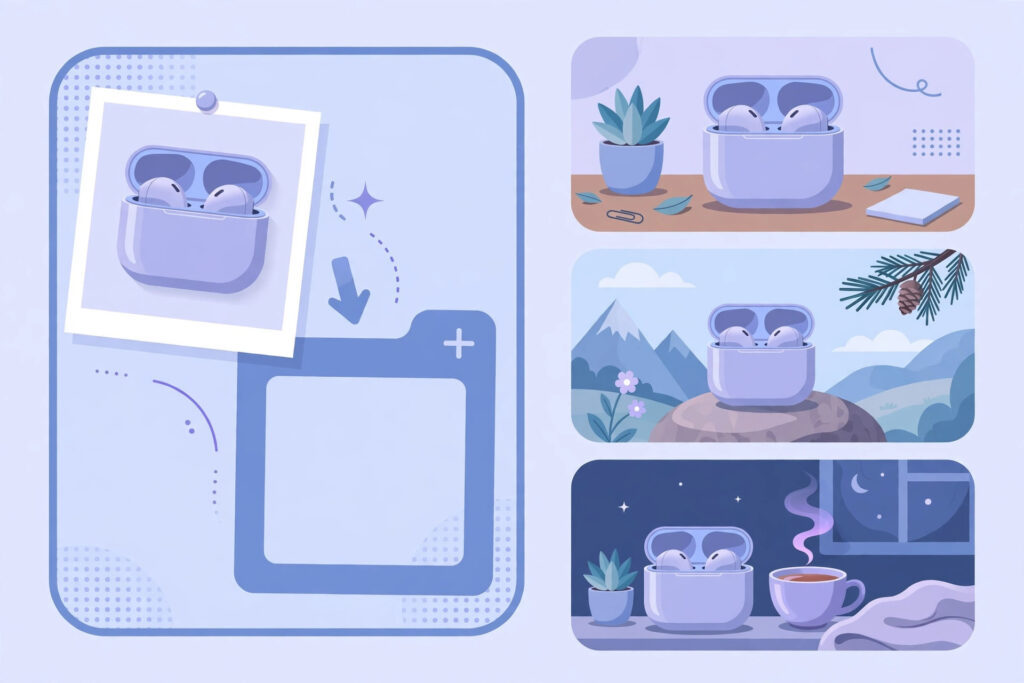
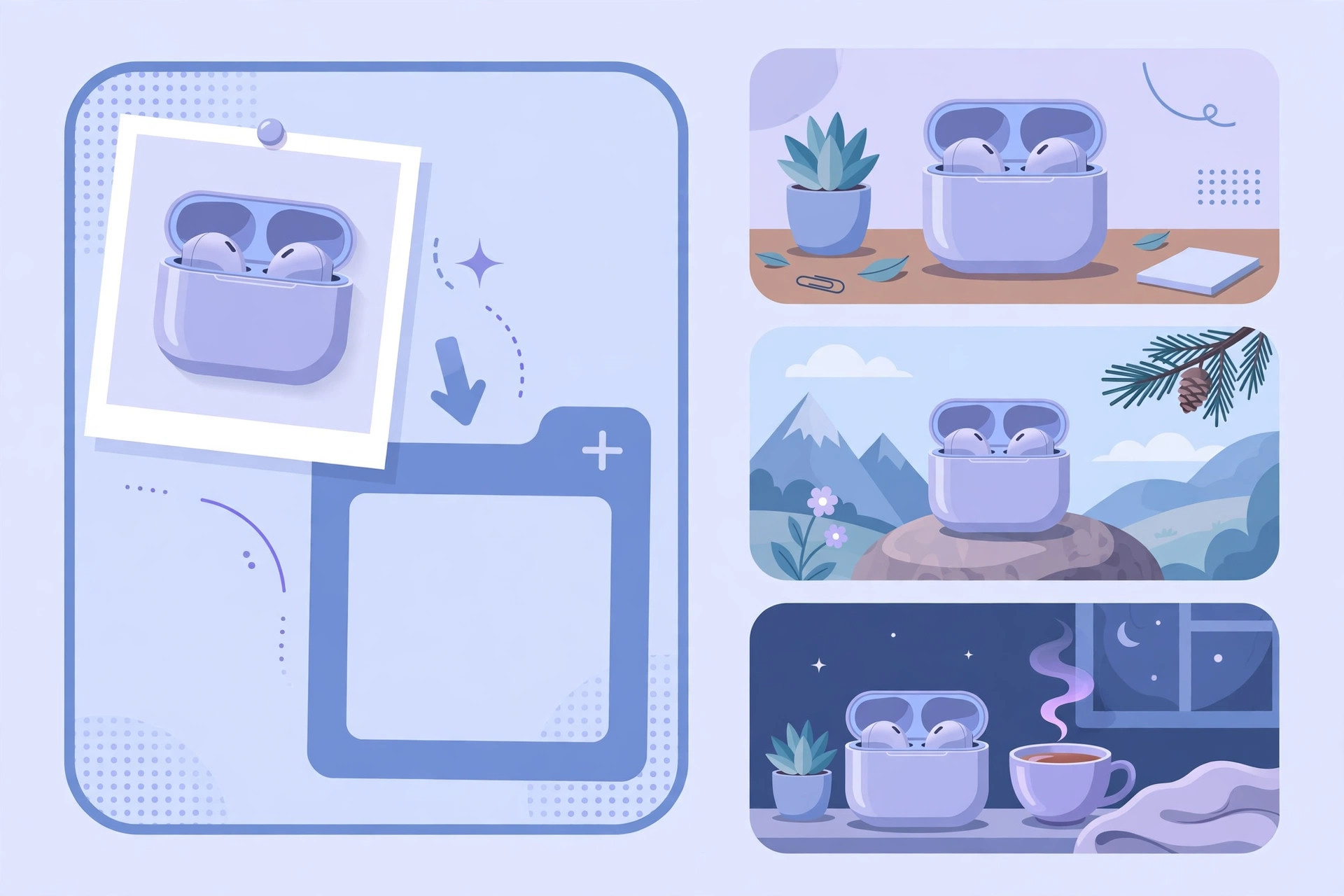
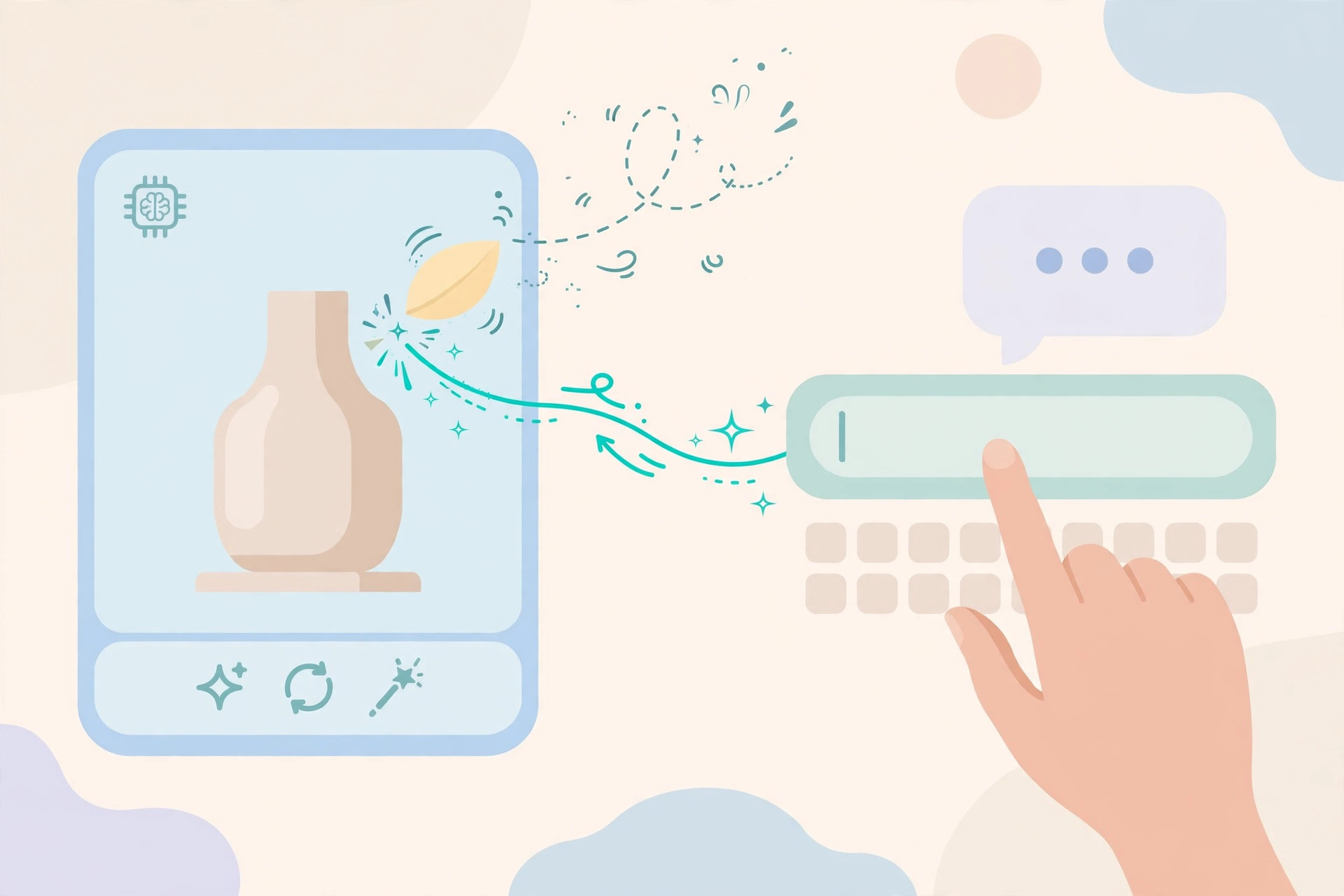
That is the whole trick. From now on, in this chat and in new image requests, typing @bluebottle calls up the saved photo instead of describing the product from scratch in words. A named reference beats a paragraph of description every time, because a description is always open to interpretation — a photo is not. You can save more than one reference: a product, a person, a logo, a mascot. Give each one its own clear name.
Step 3: Generate Your Three Core Scenes
Most product sellers and page owners need the same three images again and again. Here they are, using the @name each time.
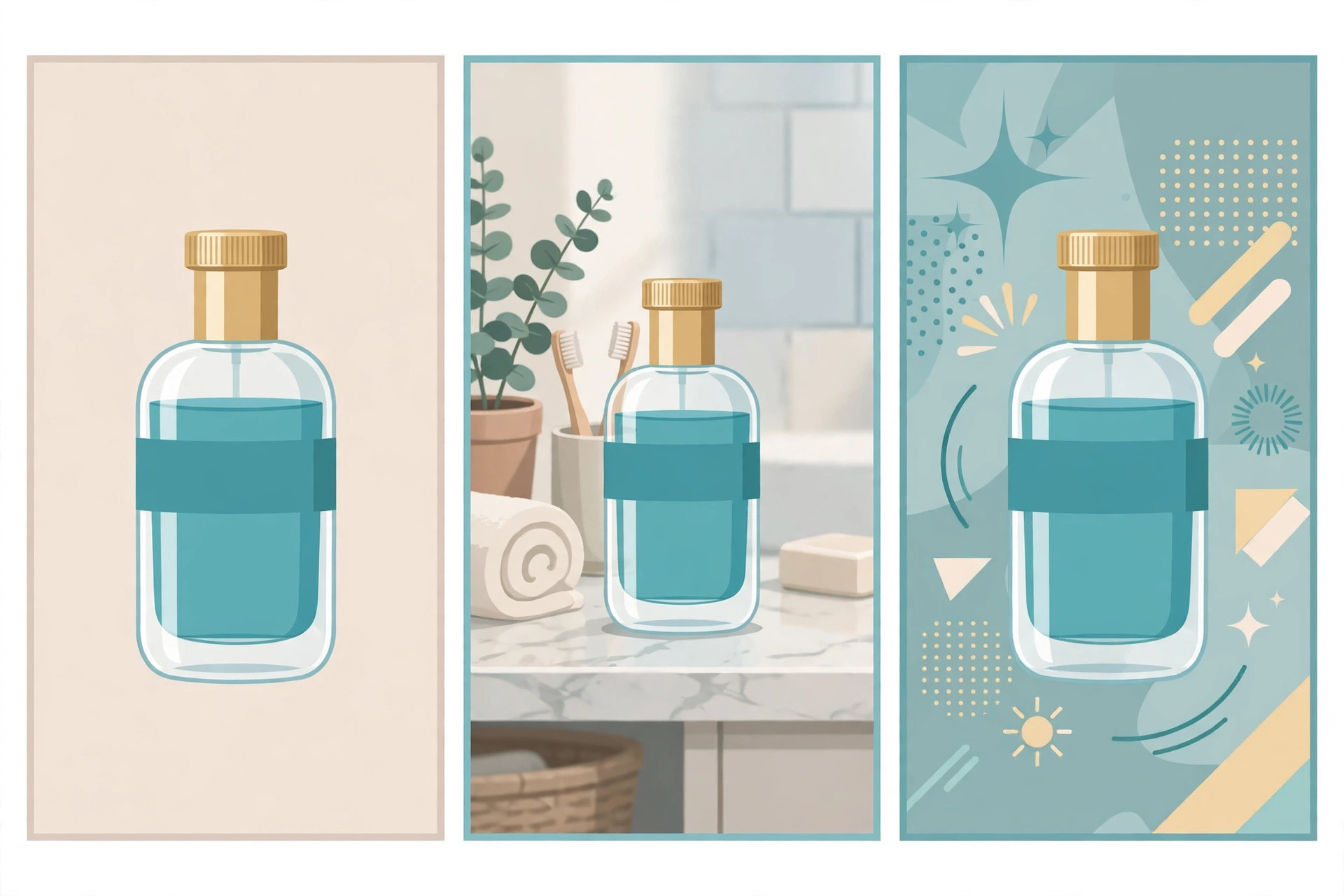
Scene 1 — the plain background shot. This is your catalogue and marketplace image: clean, bright, nothing competing with the product.
Create an image of @bluebottle on a plain light-grey studio background, soft shadow under the bottle, centred, lots of empty space around it. Keep the bottle, cap and label exactly as in the reference.
Scene 2 — the lifestyle shot. This is the image that sells the feeling: the product in a real place, used by a real person.
Create an image of @bluebottle on a marble bathroom shelf beside a folded white towel and a small green plant, warm morning light from a window. Keep the bottle, cap and label exactly as in the reference.
Scene 3 — the sale poster. This is your announcement image for a discount, a launch or a restock.
Create a sale poster image with @bluebottle large in the centre, deep blue background with soft light rays, and empty space at the top where I will add my own text later. Keep the bottle, cap and label exactly as in the reference.
Notice the last line of each prompt: keep it exactly as in the reference. It sounds obvious, but repeating the instruction in every prompt measurably helps the model treat the reference as a rule rather than a suggestion. Also notice the poster prompt asks for empty space for text instead of asking the AI to write the words — there is a good reason for that, covered in the limits section below.
When a Detail Drifts: The Fix-It Prompts
Consistent does not mean perfect. Sooner or later one detail will wander — the cap turns silver, the blue gets lighter, the bottle grows slightly taller. The mistake most people make is starting again from zero, which throws away a good image. Instead, reply to that image with a short, specific correction. One line is usually enough:
The cap is wrong — it should be gold, exactly as in @bluebottle. Fix only the cap and change nothing else.
The bottle’s colour has gone too pale. Match the deep blue of @bluebottle exactly, and leave everything else in the image untouched.
The label is distorted. Redraw the label to match @bluebottle precisely; do not change the bottle, background or lighting.
The pattern is always the same: name the wrong detail, name the reference, and say “change nothing else.” That last phrase protects the parts of the image that were already right. If two corrections in a row fail on the same detail, regenerate the scene from the reference rather than stacking a third fix on a drifting image.
Step 4: Turn a Still Into a Looping GIF
Images 2.6 also adds GIF creation, which is ideal for a product that deserves a little motion in a post or story. Take your best still — the lifestyle shot usually works best — and ask for a short animation:
Turn this image of @bluebottle into a short looping GIF: soft light slowly sweeping across the bottle and a gentle sparkle on the gold cap. Keep the product itself completely still and unchanged.
Keep the movement in the light, the background or the surroundings — not in the product. The moment the product itself starts moving, its shape starts changing, and you lose the consistency you worked to build.
Honest Limits
This workflow is genuinely useful, but it is not magic, and three limits are worth knowing before you rely on it. Text inside images still goes wrong sometimes — letters swap, words misspell, small print turns to mush. Check every image before posting, and for posters, generate the picture with empty space and add your words afterwards in any free editor, as the poster prompt above does. Free-plan generation queues at busy times, so a batch of images may take a while at peak hours; the roughly 50% speed improvement helps, but it does not remove the queue. And the saved reference is only as good as the photo you upload — a dark, tilted, low-resolution photo produces a dark, tilted, low-resolution reference, faithfully reproduced forever. Retake the photo rather than fighting the reference.
The Workflow in One Line
Upload one good photo, save it under a name you will remember, and then build every image from that name — plain shot, lifestyle shot, poster, even a GIF — correcting single details with one-line prompts instead of starting over. Pair it with strong text prompts for the writing side of your work, like these 25 copy-paste AI prompts that save time at work, and one saved reference plus one good prompt library covers most of what a small seller or creator needs each week.