

For two years, “AI on Windows” mostly meant a chat window you could ask questions. Around its Ignite event in November 2026, Microsoft described something bigger: a version of Copilot that does not just answer, but acts — organising your folders, drafting and sending an email reply, checking why something on your PC is broken — while keeping you informed and asking before anything important happens.
The names come thick and fast: Copilot Actions, Hey Copilot, Cowork, Skills, Automations, Autopilot, Hybrid Intelligence. This guide explains each one in plain language, separates what ordinary Windows 11 owners will get from what needs a Copilot+ PC, and — most importantly — is honest about what is actually available today.
Copilot Actions: The PC That Does Tasks
Copilot Actions is the headline feature. Instead of chatting back and forth, you describe a job in words or by voice, and Copilot carries it out on your PC. Microsoft’s examples include tasks like:
- Organising folders — sorting a messy Downloads folder by type, date or project.
- Handling email — drafting a reply to a message and sending it once you approve.
- Working through multi-step chores that would normally mean opening several apps yourself.
Two design details matter more than the demos. First, Copilot Actions gives progress updates while it works, so you can see what it is doing instead of staring at a spinner. Second, it stops at confirmation prompts before consequential steps — sending the email, for example — so the final word stays yours. That pause-before-acting pattern is the same safety design used by phone agents; if you have tried the agent in our Gemini Tasks tutorial, the PC version will feel familiar: the assistant works, then checks with you before anything leaves the machine.
Talking to it gets easier too. A “Hey Copilot” wake word lets you start hands-free, and the taskbar’s search box and chat are being combined, so asking a question and searching your PC become one action instead of two.
The New Copilot Home: Chat, Cowork and More
The Copilot app itself is being reorganised around how long a job takes:
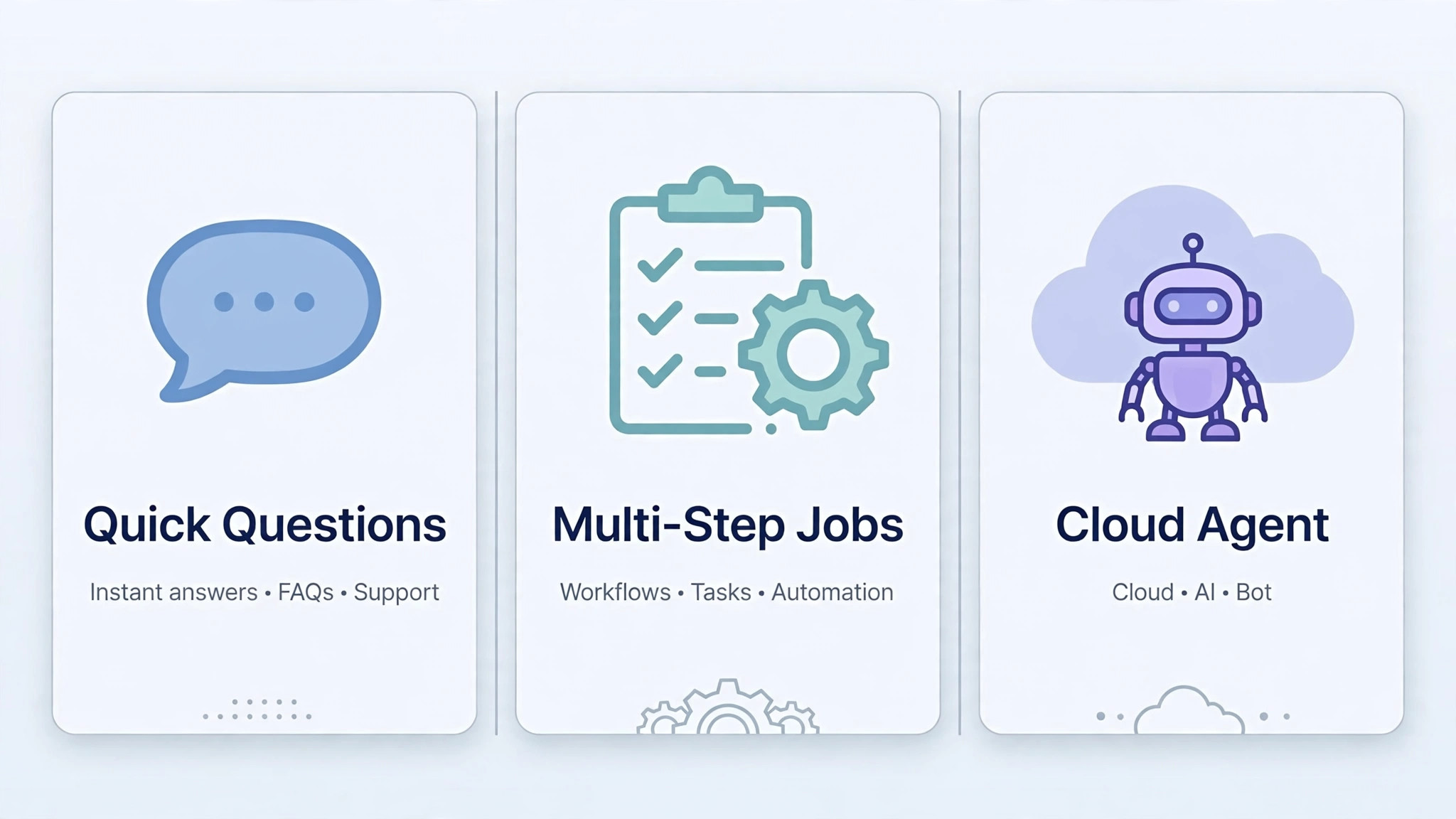
- Chat — the quick question-and-answer mode you already know. Ask, read, done.
- Cowork — the mode for bigger, multi-step jobs. You hand over a goal rather than a single question, and Copilot works through the steps, checking in as it goes.
- Skills — reusable instructions you write once in plain English. If you always want reports formatted the same way, or emails answered in the same tone, you teach it as a Skill instead of re-typing the instructions every time.
- Automations — jobs that run on a schedule. A weekly summary, a regular tidy-up, a recurring check — set once, repeated automatically.
- Autopilot — the most ambitious piece, in Frontier early access: a cloud agent with its own mailbox and its own computer, able to carry work forward in the background rather than only while you watch.
The pattern to notice: Chat answers, Cowork collaborates, Autopilot works independently. Each step up gives the AI more freedom — which is exactly why the permission prompts discussed below matter, and why the most independent mode is the one arriving last and most cautiously.
Hybrid Intelligence: One Assistant, Two Brains
The most quietly important announcement is Hybrid Intelligence. Until now, an AI assistant was either on your device (fast, private, limited) or in the cloud (powerful, but your data travels). Hybrid Intelligence means Copilot will use on-device and cloud models together, choosing where each part of a job runs.
Microsoft’s examples point at your own machine: Copilot will be able to manage local files and run read-only PC diagnostics. The example given is one every Windows user recognises — your Bluetooth audio stops working, and instead of digging through settings menus and forum posts, you ask Copilot, which inspects the PC’s state and explains what is wrong. Read-only is the key phrase: looking and diagnosing first, changing things only with your involvement.
For anyone who has spent an evening following a ten-step troubleshooting guide written for a slightly different Windows version, an assistant that can actually look at your PC before answering is a genuine quality-of-life change — when it arrives. Which brings us to the part of this article you should read most carefully.
Before You Get Excited: What Is Actually Available, and When
Please read this box before expecting any of the above on your laptop tomorrow. Microsoft’s announcements describe a direction and a staged rollout, not a single update day:
- Some pieces are rolling out to all Windows 11 PCs in waves — your PC may get them weeks after someone else’s, with no way to jump the queue.
- Copilot Actions is entering preview — available to limited groups first, and it must be switched on rather than appearing fully formed.
- Local file actions and the Hybrid Intelligence diagnostics are “coming soon,” to Copilot+ PCs first.
- Microsoft has promised no exact date for the full set. Anyone giving you a precise day is guessing.
This is the normal pattern for big Windows features now — the same staged, region-by-region rollout we saw with phone AI agents. The features are real and announced; the timing on your specific machine is the unknown.

What This Means for an Ordinary Windows 11 Owner
What every Windows 11 PC gets
The combined taskbar search and chat, the reorganised Copilot app with Chat and Cowork, Skills and Automations are the parts aimed at Windows 11 generally, arriving in waves. If your laptop is a few years old but runs Windows 11 and stays updated, you are in line for this layer.
What needs a Copilot+ PC
The on-device heavy lifting — local file actions and the Hybrid Intelligence diagnostics arriving first — is aimed at Copilot+ PCs, the newer machines built with strong neural processors for local AI. If your PC predates that category, expect the cloud-powered features, not the local ones, at least in the first phase.
The permission prompts to expect
An assistant that can touch your files, email and settings must ask — and it will. Expect prompts the first time Copilot wants to open a folder, act on an app, or send something in your name. Treat them the way you treat app permissions on your phone:
- Allow the narrow thing the task needs — access to the one folder you asked it to organise.
- Think twice before broad, permanent access to everything, granted “to save time.”
- Use the confirmation prompts — they exist so a misunderstood instruction stops at a draft instead of becoming a sent email.
One habit is worth building early, whichever features reach you first: write your instructions down. A request that works well in Chat can become a Skill; a job you ask for twice can become an Automation. The owners who benefit most from this wave will not be the ones with the newest hardware — they will be the ones who taught their PC their routines while the features were still arriving.
The Honest Summary
Windows 11 is genuinely turning into an AI PC: an assistant that organises, drafts, schedules and diagnoses, split sensibly between your machine and the cloud, with your instructions saved as Skills and your approval kept in the loop. But “turning into” is the correct tense. Today, most owners will see the new Copilot app arrive in waves; the acting features are in preview; the smartest local tricks are coming soon to Copilot+ hardware first. Keep Windows updated, learn the Chat and Cowork modes when they reach you, and you will be ready for Actions the day your wave arrives — no new laptop required just yet.