

How to Make a 15-Second AI Video With Gemini Omni in Google Vids — Free, Step by Step is for anyone who wants a short, polished clip without learning complicated video software. You do not need a camera, a studio, or editing experience. You describe the video in plain words, generate it, and improve it by chatting about what to change. This guide walks through the process, explains prompts that get better results, and shows what to do when something looks wrong.
Fifteen seconds may sound short, but it is long enough to show a product, explain one simple idea, or create a mood — and short enough that viewers will usually watch to the end.
What Gemini Omni in Google Vids Is
Gemini Omni 1.2 Flash is the AI model behind this way of making video. It creates videos up to 15 seconds long and, just as importantly, it lets you edit those videos conversationally. That means you do not have to start again every time you want a small change. You can ask for an adjustment in a normal sentence, much like asking a person to tweak a draft.
Google Vids is where you work. With a Google account, you can make 15-second videos there at no extra cost. You open Vids, describe the clip you have in mind, generate it, and refine it in the same place. For a beginner, that is the main appeal: one simple flow, from idea to finished clip, without jumping between several different tools.
Think of the process in three parts: describe clearly, generate, then watch the result and ask for changes by conversation.

Before You Start
You only need a few things ready before you begin:
- A Google account so you can open and use Google Vids.
- One clear idea for a single short clip, not a whole story with many scenes.
- A photo, if you want one, such as a product photo you would like the video to start from or feature.
- A few notes about the subject, the movement, and the mood you want.
If you already use Gemini to organise jobs and reminders, the conversational style here will feel familiar. Our guide on how to use Gemini Tasks to plan your day shows the same basic idea: give clear instructions in plain language, review what comes back, and refine it step by step.
Step by Step: Make Your First 15-Second Video
Step 1: Open Google Vids
Sign in with your Google account and open Google Vids. Look for an option like creating a new video or starting a new project. Screen layouts can change over time, so do not worry if the exact wording on your screen is slightly different. You are simply looking for the starting point for a new video.
Step 2: Describe the Clip
Now describe what you want to see. A good first description covers three things:
- Subject: What is the main thing in the video? A person, a product, a place, or an object?
- Movement: What happens? Does the camera move closer, does the subject turn, does something open, pour, spin, or glide past?
- Mood: How should it feel? Calm, cheerful, dramatic, cosy, or professional?
For example, instead of writing only “a video of a coffee cup,” write something like: “A steaming cup of coffee on a wooden table by a window, the camera slowly moves closer, soft morning light, calm and cosy mood.” The second version gives the tool far more to work with, so the result is more likely to match what you pictured.
Step 3: Generate the Video
Once your description is ready, look for an option like generate or create, and let the tool build the clip. Watch the whole 15 seconds before you judge it. Note what works first, then the one or two things you would change. Trying to fix everything at once makes the next version harder to judge.
Step 4: Edit by Conversation
This is where Gemini Omni is especially helpful. Instead of using complicated editing controls, you describe the change you want. You might say “make the logo bigger” if a product logo is too small to read. Or you might say “evening light instead” if the scene looks like midday but you wanted a warmer, end-of-day feel.
Make one clear change at a time, then watch again. Small, specific requests are easier to follow than a long list of changes in one message. If a change makes things worse, describe what you liked better in the earlier version.
A Worked Example: A Product Teaser From One Photo and One Sentence
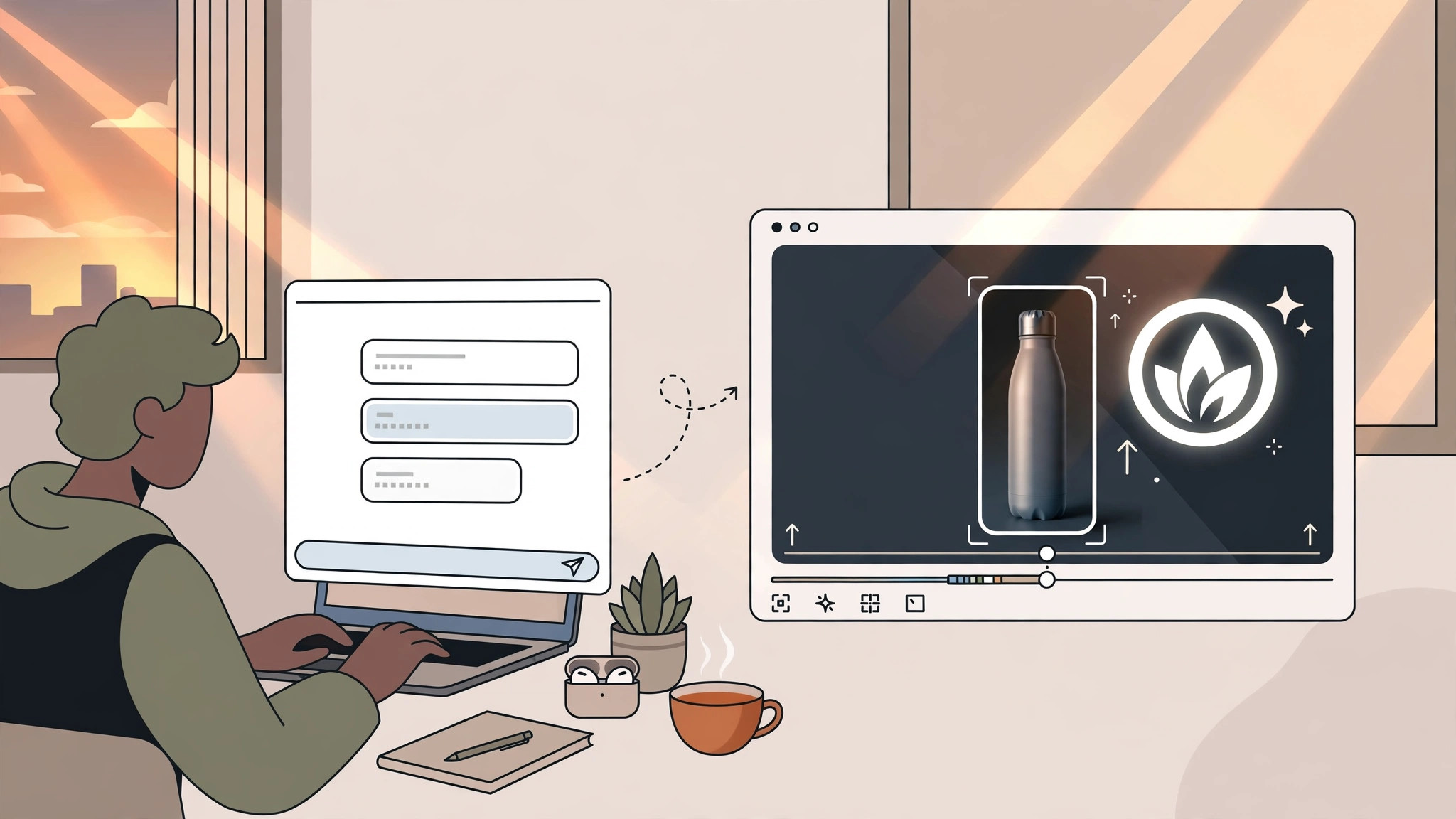
Imagine you sell a handmade candle and you have one good photo of it on a plain background. You want a short teaser you can share online. You do not need a film crew for this. You start from that one photo and add one sentence describing the video you want.
Your sentence could be: “The candle from the photo sits on a small wooden table, the flame flickers gently, and the camera slowly moves closer, with warm, cosy evening light.” That single sentence covers the subject (the candle), the movement (a gentle flicker and a slow camera move), and the mood (warm and cosy).
After generating, review the clip like a customer would. Is the candle clear in the first couple of seconds? Does the movement feel smooth? Does the light make the product look inviting? If the candle is too small, ask for it to fill more of the screen. If the scene is too bright, ask for softer evening light. A few small edits like these can turn a basic clip into a teaser that feels finished.
The same pattern works for a pair of shoes, a plate of food, or a handmade bag: one photo gives the tool something real to build on, and one clear sentence tells it how that photo should come to life.
Prompts That Help Video Come Out Better
You do not need special technical language to get good results, but a few habits make a noticeable difference.
Use Camera-Movement Words
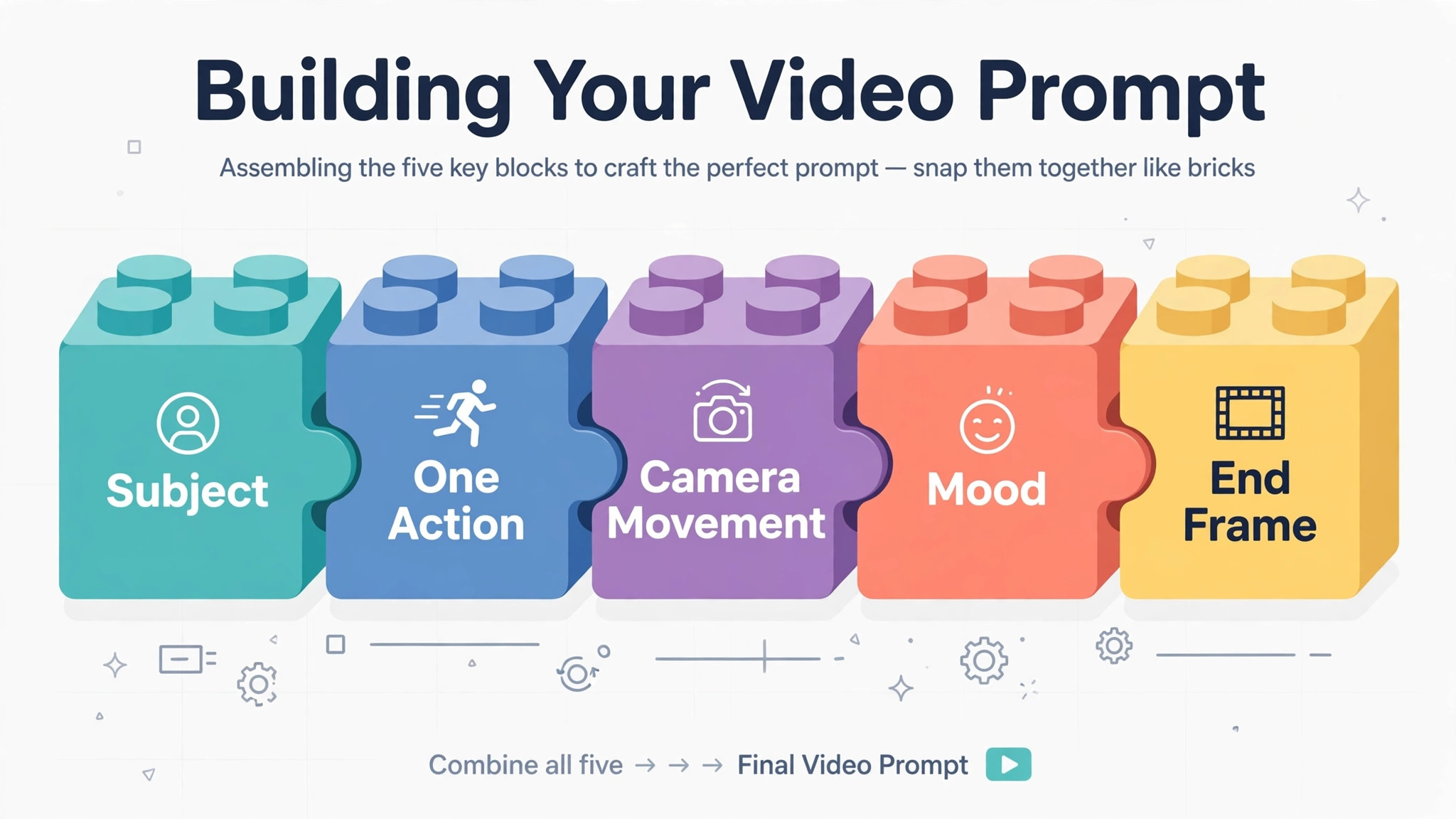
Video is about movement, so say how the camera should behave. Helpful phrases include “slowly moves closer,” “pulls back to reveal,” “slides from left to right,” “circles gently around,” and “stays still while the subject moves.” A still camera is fine too — just say so.
Ask for One Action Per Clip
Fifteen seconds is enough for one clear action, not five. A clip where a person picks up a cup and takes a sip is clear. A clip where someone enters a room, cooks a meal, sits down, and waves at the camera is likely to look rushed or muddled. If you have several actions in mind, make several clips, one action each, and use them separately.
Think About the End Frame
Decide how the video should finish before you generate it. Should it end on the product, a smiling face, or a wide view of the scene? Describing the ending — for example, “ends with a close view of the product name” — helps the clip feel complete instead of stopping suddenly.
Keep a Sensible Order
Subject first, then action, then camera movement, then mood and light. This order makes it easier to spot what is missing before you generate.
Where You Can Use Your Video
A 15-second vertical or square clip fits naturally in several places:
- YouTube Shorts, for a quick tip, teaser, or before-and-after moment.
- Instagram Reels, for products, announcements, or a friendly look behind the scenes.
- WhatsApp Status and similar status features, for a short update your contacts will actually finish watching.
Before you publish, check two things in the tool itself: whether the exported video carries a watermark, and the plan terms shown in the tool at publishing time, so you know what use is allowed. Tools and plans change, so the terms shown when you publish are the ones that matter.
Troubleshooting: When Something Looks Wrong
AI video is not perfect, and most beginners meet the same two or three problems. The key question is whether to edit the clip in chat or regenerate it from the start.
Warped Hands or Unreadable Text
Hands, fingers, and small text are common weak spots. Letters may bend, merge, or turn into shapes that look like words but say nothing. If the problem is small and the rest of the clip is good, try an edit first — for example, asking for the camera to stay a little further back, which makes flaws less obvious. If the warped detail is the main focus, regenerating with a simpler description usually works better than repeated edits. Removing tiny text from the scene, or adding your real text later where you publish, is often most reliable.
The Motion Is Wrong
Sometimes the subject moves in the wrong direction, too fast, or does something you did not ask for. If the look is right and only the movement is off, edit in chat and describe the movement again, more simply: “slower,” “the camera stays still,” or “she walks towards the camera, not away.” If the movement is wrong in several ways at once, regenerate with one action only and clearer movement words — a fresh, simpler prompt gives you a cleaner base.
A Simple Rule to Remember
- Edit in chat when the clip is mostly right and the change is small and specific, like light, size, or speed.
- Regenerate when the main subject, the main action, or a prominent detail is wrong.
Final Checklist
Before you share your video, run through this short list. The subject is clear in the first few seconds. There is one main action, and the movement is smooth and easy to follow. The mood and light match what you intended. Any important detail, such as a logo, is big enough to see. The ending feels deliberate, not abrupt. And you have checked the watermark and the terms shown in the tool at publishing time.
That is the whole method: open Google Vids, describe the subject, movement, and mood, generate your 15-second clip with Gemini Omni, and improve it by conversation. Start simple — one photo, one sentence, one action — and the next clip will be quicker, because you will already know which words give you the result you pictured.