

How to Turn On Copilot Actions in Windows 11 and Give Your PC Its First Task sounds simple, but there is one honest catch to understand before you start: you might not have this feature yet, even if your PC is fully up to date. That is normal, and it does not mean you have done anything wrong.
Copilot Actions moves Copilot beyond answering questions. Instead of only chatting, it can, with your permission, take steps on your PC — for example, sorting files or helping with a task in an app or on the web. Because that is a bigger responsibility, it is being introduced carefully, in preview, and must be switched on manually.
This guide follows a safe order: check whether you have it, choose permissions thoughtfully, then try two low-risk first tasks. If you do not have it yet, the last section explains what to use meanwhile.
First, check if you have it yet
Please do not skip this section. Copilot features roll out in waves, not to everyone on the same day. Two people with the same version of Windows 11 can see different Copilot options for a while. Copilot Actions is entering preview, so availability is even more limited at first.
Some Copilot abilities are also Copilot+ PC first, so certain PCs may receive a feature earlier than others. If you want background on what that label means, our guide to Windows 11 AI PCs and Copilot explains the difference in plain language.
How to check your own PC
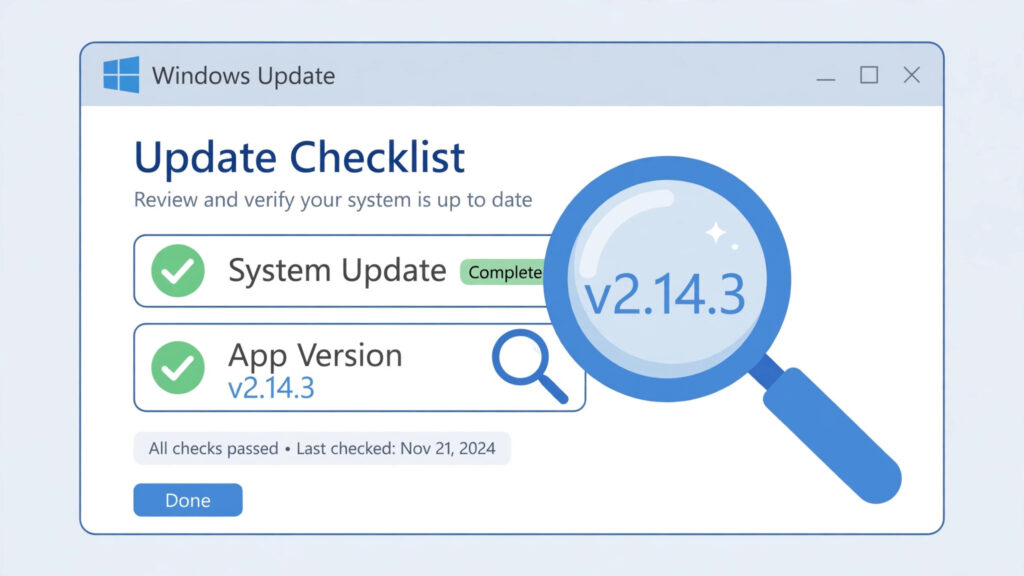
- Check Windows Update: Open Settings, look for an option like Windows Update, and install any available updates. Then restart your PC, even if you are not prompted to. Many Copilot changes only appear properly after a restart.
- Check the Copilot app version: Open the Copilot app and look for an option like Settings or About inside it. Note the version shown, and check the app store page for Copilot for any pending update. An up-to-date Windows install with an old Copilot app can still be missing new options.
- Look for Actions in Copilot: After updating both, open Copilot again and look through its main menu and settings for an option like Actions, or a preview or experimental features area. The exact wording and position may vary as the preview develops.
If you find an Actions option, you are in the current wave and can continue below. If you do not find it, do not download anything from unofficial sites to force it. The safest conclusion is simply that it has not reached your PC yet. Check again after future Windows and Copilot app updates.
Step by step: turn on Copilot Actions
Because this is a preview, screens may not match these descriptions word for word. Treat them as a guide to the kind of option to look for, not as exact button labels.
Step 1: Update Windows first
Confirm no important updates are waiting in Windows Update. Install what is offered, restart, then check once more — one update often unlocks another.
Step 2: Open Copilot and find the Actions setting
Open the Copilot app from your Start menu or taskbar and sign in if it asks you to. Then look for an option like Settings, and inside it, an option relating to Actions or preview features. If Copilot shows an introductory screen explaining Actions, read it fully before agreeing to anything.
Step 3: Switch Actions on manually
Copilot Actions must be switched on manually — it should not start acting on your PC without you choosing to enable it. Look for a toggle or enable option for Actions, and turn it on only when you have a few quiet minutes to review the permission choices that follow.
Step 4: Grant or deny permissions thoughtfully
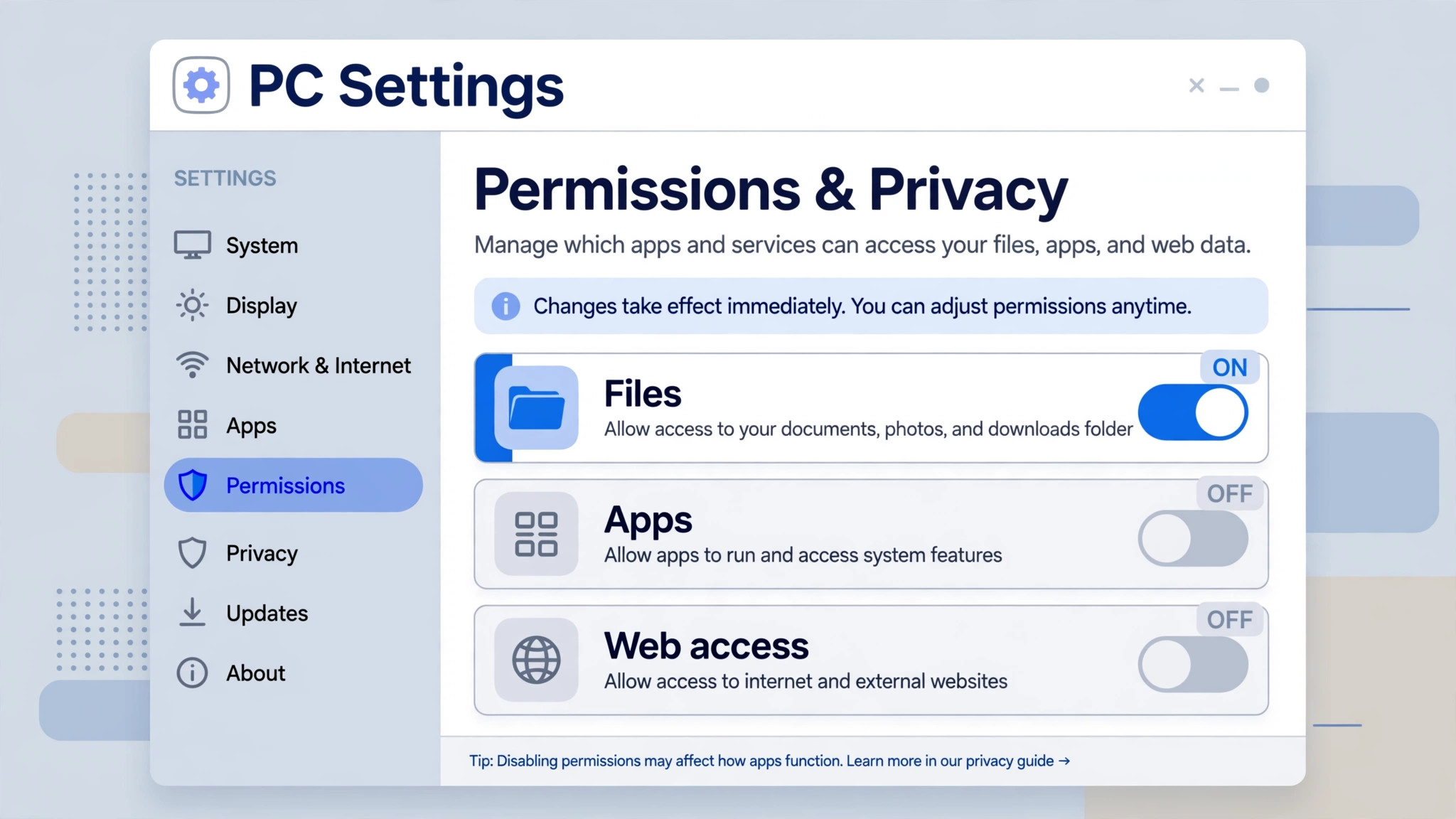
This is the most important step in the guide. Actions may ask for access in a few broad areas. You do not have to say yes to everything, and you should start with the least access needed for the task you want to try.
- Files: This lets Actions help with tasks such as sorting a folder. Consider limiting it, where offered, to a specific folder such as Downloads rather than your whole PC. Deny access to folders with sensitive documents until you understand how the feature behaves.
- Apps: This lets Actions work inside programs for you. Start with everyday, low-risk apps. Be more cautious with anything involving money, private messages, or work documents you cannot afford to have changed by mistake.
- Web: This lets Actions look things up or work in a browser as part of a task. Reading a public page is very different from submitting a form or making a purchase, and you should expect — and want — a confirmation before anything like that happens.
A good rule is simple: if you do not understand why a permission is being asked for, deny it for now. You can usually revisit permissions later. Starting small is much safer than granting everything on day one.
Your first task: organise the Downloads folder by type
For a first task, choose something useful, easy to check, and easy to undo. Sorting the Downloads folder by type fits all three. Most Downloads folders mix documents, images, installers, and other files, and you can see at a glance whether the result makes sense.
Open Copilot and, in the Actions area if that is how it is presented on your PC, describe the task in plain words, along the lines of: organise my Downloads folder by type. You do not need special commands. Clear, ordinary language, naming one folder and one simple outcome, is the best way to start.
Watch the progress updates
Once the task begins, stay nearby and watch the progress updates. This is your chance to notice early if it has misunderstood you — for example, if it mentions a different folder from the one you named.
Handle the confirmation prompt carefully
At some point, expect a confirmation prompt before files are actually moved or changed. Read it properly. Check three things before you confirm:
- Does it name the correct folder — Downloads, and only Downloads?
- Does the summary match what you asked for — sorting by type, not deleting anything?
- Is there any mention of a step you did not ask for?
If everything matches, confirm and let it finish. If anything looks wrong or unclear, cancel instead and try again with a more specific instruction. Cancelling a confusing task is always the right choice; a tidy folder is never urgent.
When it finishes, open Downloads in File Explorer and check the result yourself. Make sure nothing important has disappeared. In a preview, your own check is part of the process.

Your second task: use your voice with Hey Copilot
Once you are comfortable with a basic task, voice is a natural next step. Where available, you can start talking to Copilot by saying “Hey Copilot” when Copilot is listening for it, or by using the voice option inside the app. If the wake phrase does not work yet, look for an option like voice or microphone settings.
Ask about what is on your screen
One helpful voice use is asking about what you are already looking at. This is where Copilot Vision comes in: where available and switched on by you, Copilot can consider what is on your screen to help answer a question about it.
For example, if a page confuses you, ask Copilot in your own words what a section means or where to find a related option. Only share your screen when comfortable, and hide anything private — such as banking pages or personal messages — first.
Dictate an email reply
Voice is also useful for a first draft. Open an email you need to reply to, start a reply in the usual way, and dictate what you want to say through Copilot or the voice option offered to you. Speak in short, clear sentences and say the main point first.
Then, and this is essential, read the draft before you send it. Voice tools can mishear names, numbers, and dates, and a dictated reply can sound abrupt. Edit it, and only send it yourself when you are happy.
How to stop a task, undo a change, and revisit settings
Knowing how to stop is just as important as knowing how to start. If a task is running and something looks wrong, look for an option like stop, pause, or cancel in the task view and use it straight away. Starting a task does not commit you to letting it finish.
Undoing a change
For a file task, undoing is usually straightforward: open the folder, select the moved files, and move them back yourself in File Explorer. For other tasks, look for an undo, history, or activity option in Copilot if offered, and check the app involved — many apps keep their own recent changes or trash areas. Check soon after a task; fixes are easier then.
Settings to revisit monthly
Set yourself a simple monthly habit. It only takes a few minutes:
- Review which permissions Actions currently has for files, apps, and the web, and remove any you no longer use.
- Check whether new preview options have appeared, and read their explanations before enabling them.
- Confirm Windows and the Copilot app are still up to date.
- Think about the tasks you actually used. If you only use one kind of task, you probably do not need broad permissions for the others.
If you do not have Copilot Actions yet
If Actions is not on your PC, you do not need to wait doing nothing. You can still use Copilot Chat to ask questions, summarise text, draft messages, brainstorm ideas, and get step-by-step help that you then carry out yourself. Doing the steps yourself is slower, but you see and approve every change, which many people prefer.
You can also look for Copilot Skills in your Copilot experience. Skills are focused abilities that help Copilot handle particular kinds of requests, and they are rolling out to everyone in November. What you see may grow gradually, so it is worth opening Copilot after updates and exploring what is newly offered.
In the meantime, practise the habits in this guide with Chat: describe tasks clearly, name the exact folder or document you mean, and review any suggestion before you use it. When Actions reaches your PC, those habits will make your first task much more likely to succeed.