


Most AI assistants answer questions. Gemini Tasks is Google’s step beyond that: instead of only telling you things, it can do things. Ask it to call a shop to check opening hours, book a restaurant table, turn a photo of a school notice into calendar entries, or build a shopping cart from your usual list — and it works through the steps itself, then reports back. It runs on Google’s Gemini 4 models and behaves less like a search box, more like a junior assistant you hand small jobs to.
That difference matters. A chatbot that answers wrongly costs you a few seconds; an assistant that acts can book the wrong time or order the wrong item — which is why this guide spends as much time on reviewing and stopping tasks as on starting them. Used with a little supervision, it can genuinely hand back pieces of your day.

Before You Start: What You Need
Check whether you even have it yet
Gemini Tasks began a free rollout on 17 November 2026, arriving in stages, not all at once. The first regions are the US, Japan, Korea, Canada, Australia and India. If you live elsewhere, or your account has not been reached yet, the feature simply will not appear — that is normal, and no setting or reinstall forces it. The honest answer to “why don’t I have it?” is usually “your turn has not come yet.”
What to have ready
- The Gemini app on your phone, updated to the latest version, signed in with your main Google account.
- Your Google Calendar and contacts in reasonable shape — Tasks works with them.
- A few minutes for permissions. The first time you give a task, Gemini asks for the access it needs — calendar, contacts, the ability to place calls. Read each request: allow what the task needs, decline the rest.
- A small first job. Do not start with anything involving money or other people — pick something you can check in ten seconds.
Task 1: Your First Simple Task
Start with a job that organises information rather than contacting anyone — turning a photo of a notice into calendar entries. It teaches you how Tasks reports its work, with nothing at stake.
- Open the Gemini app and look for Tasks — in the current rollout it appears as its own option in the app; if you cannot find it, your account does not have the feature yet (see troubleshooting below).
- Attach or take a photo of something with dates on it: a school notice, a clinic appointment card, a printed schedule.
- Type a clear instruction, for example: “Read this notice and add every date to my calendar as an event with the title from the notice. Remind me one day before each one.”
- Send it and watch the progress view. Tasks shows each step it takes — reading the image, creating each event — rather than returning a finished answer silently.
- When it reports back, check each calendar entry against the photo: dates, times, titles. Correct anything wrong with one follow-up, such as “The dentist appointment is at 4 pm, not 4 am — fix it.”
Task 2: Let It Make a Call and Book Something
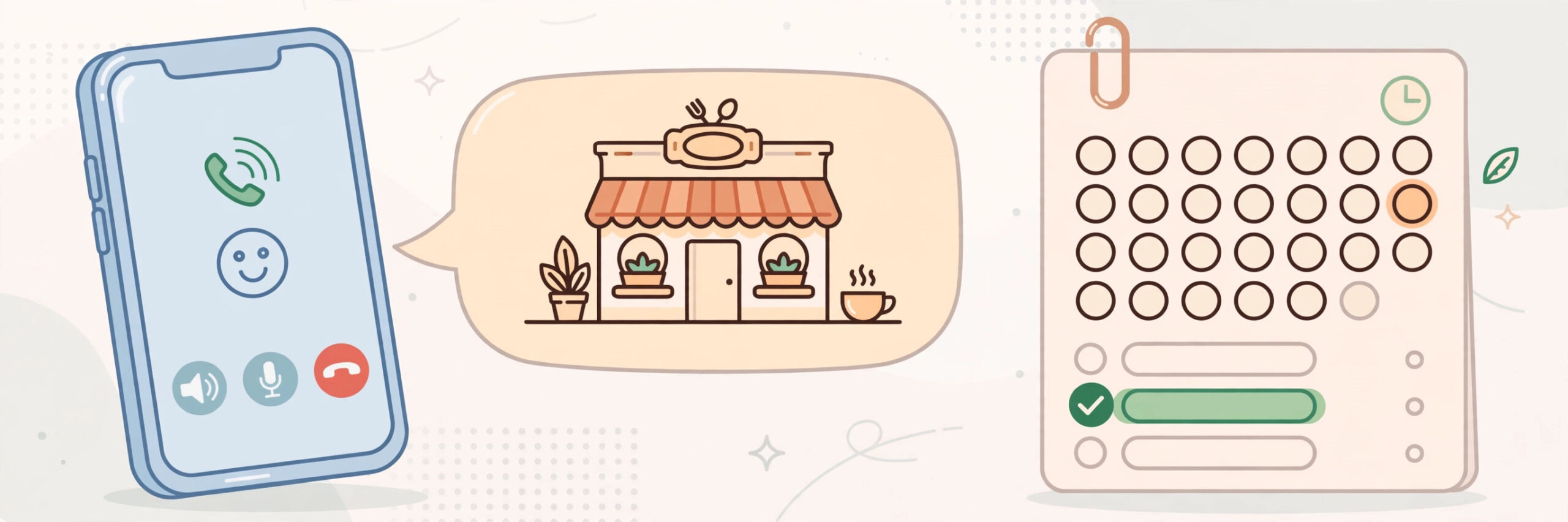
This is the headline ability: Gemini can call a real business for you, hold a short conversation, and complete a simple job like checking hours or booking a table.
- Open Gemini Tasks and state the job in one message, with every detail the business might ask for. For example: “Call Bella Italia restaurant and book a table for 4 people this Friday at 7:30 pm, under the name Ahmed. If 7:30 is not available, ask for the nearest time and check with me before accepting it.”
- Review the summary Gemini shows before dialling. It should restate who it is calling, why, and what it may and may not agree to. Fix any detail now — this checkpoint is far cheaper than un-booking later.
- Confirm, and let the call happen. You can follow progress in the app while it speaks to the business.
- Read the result summary carefully: the time agreed, the name the booking is under, any reference mentioned. If it differs from what you asked for, say so immediately in a follow-up.
- Sanity-check important bookings yourself — glance at the confirmation message if one arrives, or make one short call of your own for anything that really matters.
That boundary in step 1 — what the agent may decide alone versus what it must bring back to you — is the most useful habit in this guide.
Task 3: Organise Your Day
Once you trust the basics, Tasks is most useful as a morning organiser that combines your calendar and small errands into one request.
- Give one combined instruction, such as: “Look at my calendar for tomorrow. Add 30 minutes of travel time before the dentist, and remind me at 8 am to take the documents for the 2 pm meeting.”
- Watch which parts it does immediately (reminders, travel blocks) and which it flags for your approval (anything involving another person).
- Approve or edit each flagged item rather than approving the whole batch blindly.
- Add a recurring chore if it helps — a weekly grocery cart from your usual list is a good example. Ask it to prepare the cart, never to pay: “Build my usual weekly shopping cart and show it to me. Do not check out.”
- Review the prepared cart or plan line by line before anything is ordered. Swap items with a follow-up instead of starting over.
How to Review and Confirm What It Did
Every completed task produces a summary of actions taken. Treat it as a receipt: read it, and spot-check the real-world result — the calendar entry, the booking reference, the cart contents. If a summary is vague about something important (“booked successfully” with no time or name), ask directly what exactly was agreed; a good agent can always account for its own steps.
How to Stop or Undo a Task
While a task runs, its progress view includes a way to stop it — use it the moment a step looks wrong, rather than repairing a finished mistake. Stopping mid-booking can leave things half-done, so afterwards check what state things are in: was the booking made or not? To undo completed work, go backwards through the summary: delete the calendar entries it created, cancel bookings using the details it reported, remove cart items before checkout.

Privacy and Safety: What to Never Delegate
An agent that can call, book and buy needs firm boundaries:
- Never let it pay without your review. Preparing a cart is a chore; approving the spend is your job. Check totals, delivery addresses and quantities every time.
- Never delegate anything involving passwords, bank details, ID documents or one-time codes. If a task reaches a step that needs them, that step is yours personally.
- Be careful with messages to real people. Let it draft; you press send — especially for work, money or anything emotional.
- Grant permissions per need. Calendar access for scheduling makes sense; permanent access to everything does not. Review granted permissions now and then, and remove what you no longer use.
- Double-check health, legal and money outcomes. An agent can book the appointment; it cannot judge the advice. Treat its summaries in these areas as notes, not facts.
Troubleshooting
- “I can’t find Tasks anywhere.” Almost always the staged rollout: the feature began in the US, Japan, Korea, Canada, Australia and India on 17 November 2026 and is expanding gradually. Update the Gemini app, confirm you are signed in, and check again in a few weeks. There is no legitimate trick to jump the queue.
- It misunderstood my instruction. Correct it with one specific follow-up naming the wrong detail and the right one. Vague complaints (“that’s wrong”) produce vague fixes.
- The business didn’t answer, or the call failed. Ask Gemini what it confirmed before the failure, then decide: retry later, or make this one call yourself.
- Something in a cart or booking is wrong. Fix it at the review step with a follow-up (“swap the 2-litre milk for 1-litre”) — editing the agent’s draft is faster than redoing the task.
- It asks for a permission I don’t want to give. Decline it — some tasks won’t be possible without it, and that is fine.
Frequently Asked Questions
Is Gemini Tasks free?
Yes — Google began rolling it out as a free Gemini feature on 17 November 2026. But it is a staged rollout, so “free” does not yet mean “available to everyone”: the first regions are the US, Japan, Korea, Canada, Australia and India, with more following.
What can Gemini Tasks actually do?
Multi-step jobs rather than single answers: calling a business to check information or make a booking, creating calendar entries from text or photos, preparing shopping carts from your lists, and organising reminders — reporting back with a summary of each action.
Can it spend my money?
It can prepare purchases up to the point of payment — keep checkout as your own step. Always review the cart, total and delivery details yourself before anything is paid for.
What if it makes a mistake?
Stop the task from its progress view if it is still running, then work through its summary to undo what was done — delete entries, cancel bookings, empty carts. Specific follow-up instructions fix most errors.
How is this different from just asking Gemini a question?
Ordinary Gemini answers with information. Tasks acts on your behalf across apps and even phone calls, in several steps, then reports what it did. That is why the review and permission habits here matter more than with a normal chatbot.
Conclusion
Gemini Tasks is best treated like a new assistant in their first month: capable, fast, and worth supervising. Start with a harmless organisational job, learn how it reports its work, set clear boundaries about what it may decide alone, and never hand over the payment step. If the feature has not reached your account yet, that is simply the staged rollout — when it arrives, you will know how to use it from day one.